Overview
About the service
Bitsby is a payment service that makes it easy to accept and process payments in popular cryptocurrencies. With our crypto payment processing, you can add crypto payments to an online service, e-commerce store, online school, Telegram bot, or any other platform.
info
💎 The key feature that sets Bitsby apart from thousands of other services: all funds go straight to your own crypto wallets, while payment processing stays fully automated. This brings a number of advantages:
- Low fees: 0.5–1%, charged only on successful payments. No additional fees.
- Security: no one has access to your crypto, and no one can freeze it.
- Speed: payments arrive directly in your crypto wallets, and you can spend them right away. Fast turnover of your funds.
- No KYC: no identity, company, or store verification. Sign up and start working right away.
- Automation: the service processes all incoming payments, matches them to invoices, and sends all the necessary notifications.
- API: manage invoices and payments from your own systems and stores.
- Convenience: the service renders equally well on all platforms and browsers, and comes with a PWA app and a Telegram bot.
Supported cryptocurrencies
- USDC on Solana, Ethereum (ERC-20), BNB Smart Chain (BEP-20), and Base
- USDT on Solana, Toncoin, Tron (TRC-20), Ethereum (ERC-20), and BNB Smart Chain (BEP-20)
- BTC
- ETH
- SOL
- TON
How it works
- The merchant creates an invoice. They specify the amount, the invoice currency, and a description of the product or service. Supported fiat currencies: USD, EUR, RUB.
- The service converts the fiat amount into USDC, USDT, BTC, ETH, TON, and SOL amounts. It locks these amounts in for the invoice.
- The merchant gets a link to the payment form and sends it to the customer.
- The customer pays the invoice by transferring the specified amount to any of the merchant's wallets.
- The service automatically detects the incoming transaction and looks for an unpaid invoice.
- If the service finds an unpaid invoice with a matching amount, the invoice moves to Paid.
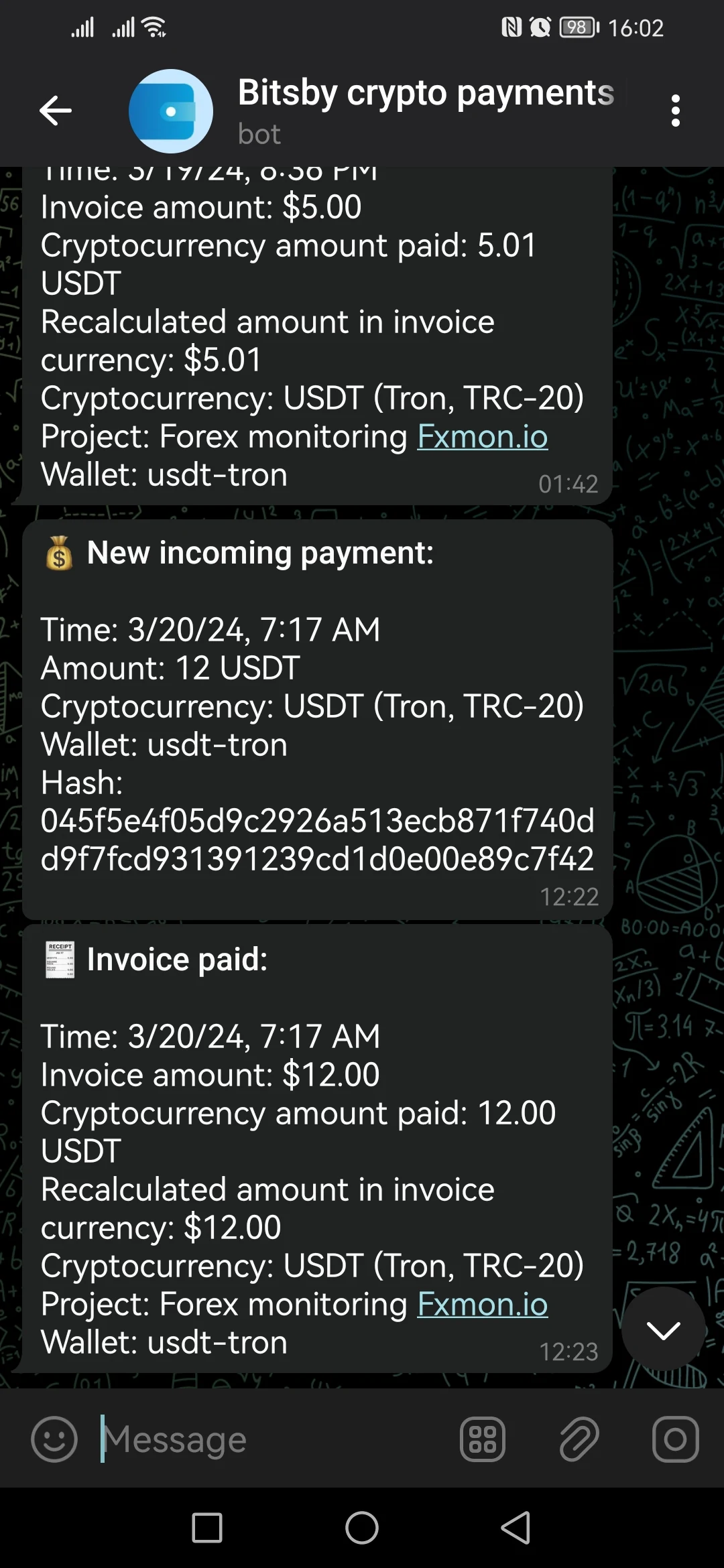
- The service sends a paid-invoice notification to email, to the Telegram bot, and to the Webhook URL (the merchant's store).
- If the service does NOT find an unpaid invoice (for example, the customer transferred the wrong amount), the invoice is not confirmed automatically. The invoice requires manual handling.
- The merchant can manually match an unmatched payment to an unpaid invoice.
Demo
Dashboard screenshots
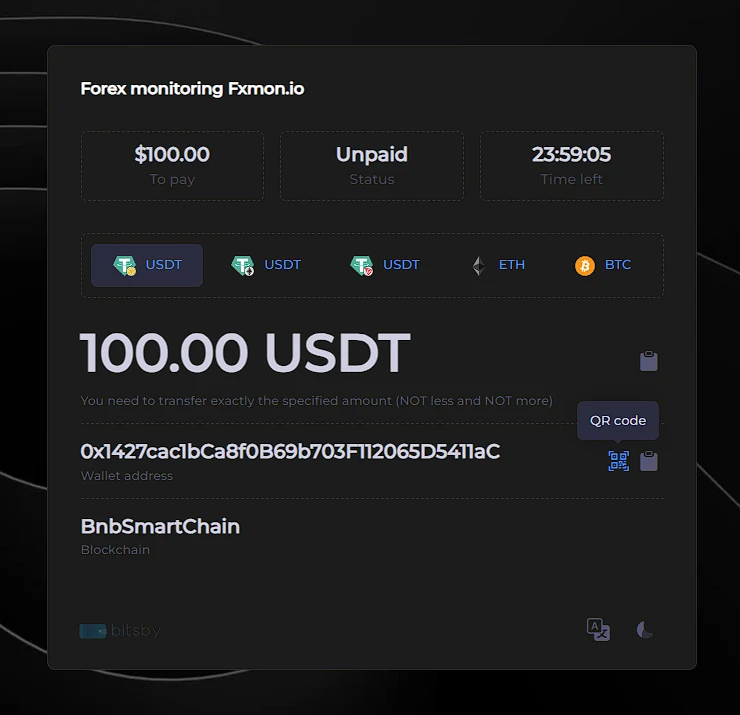
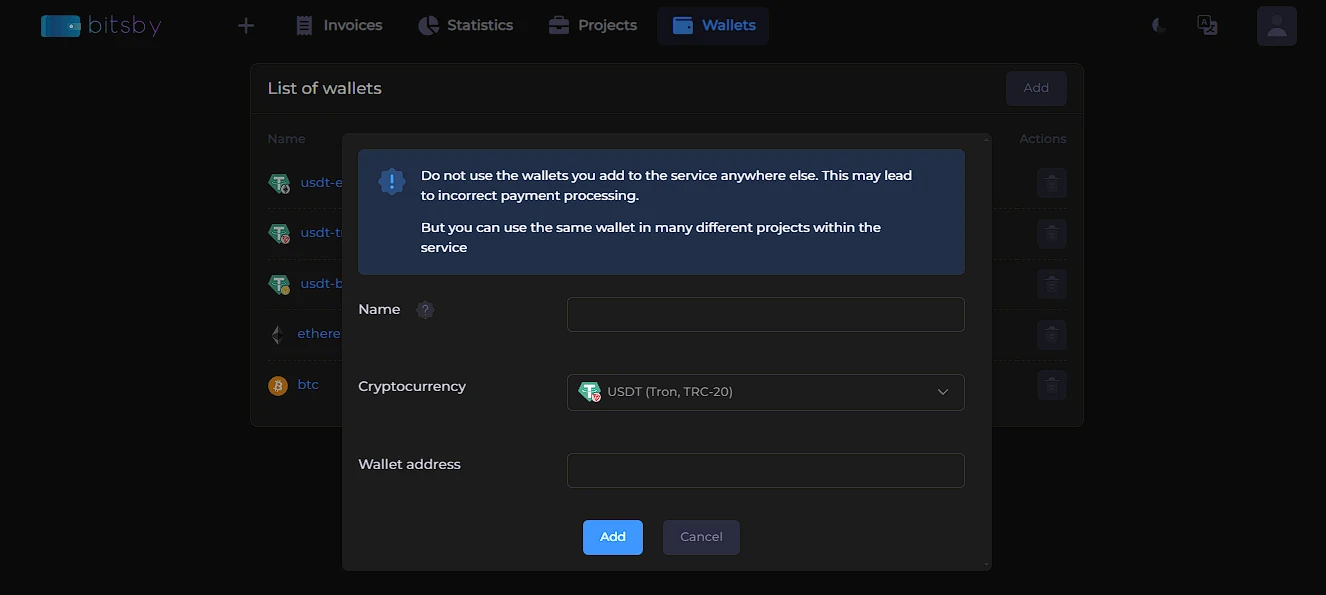
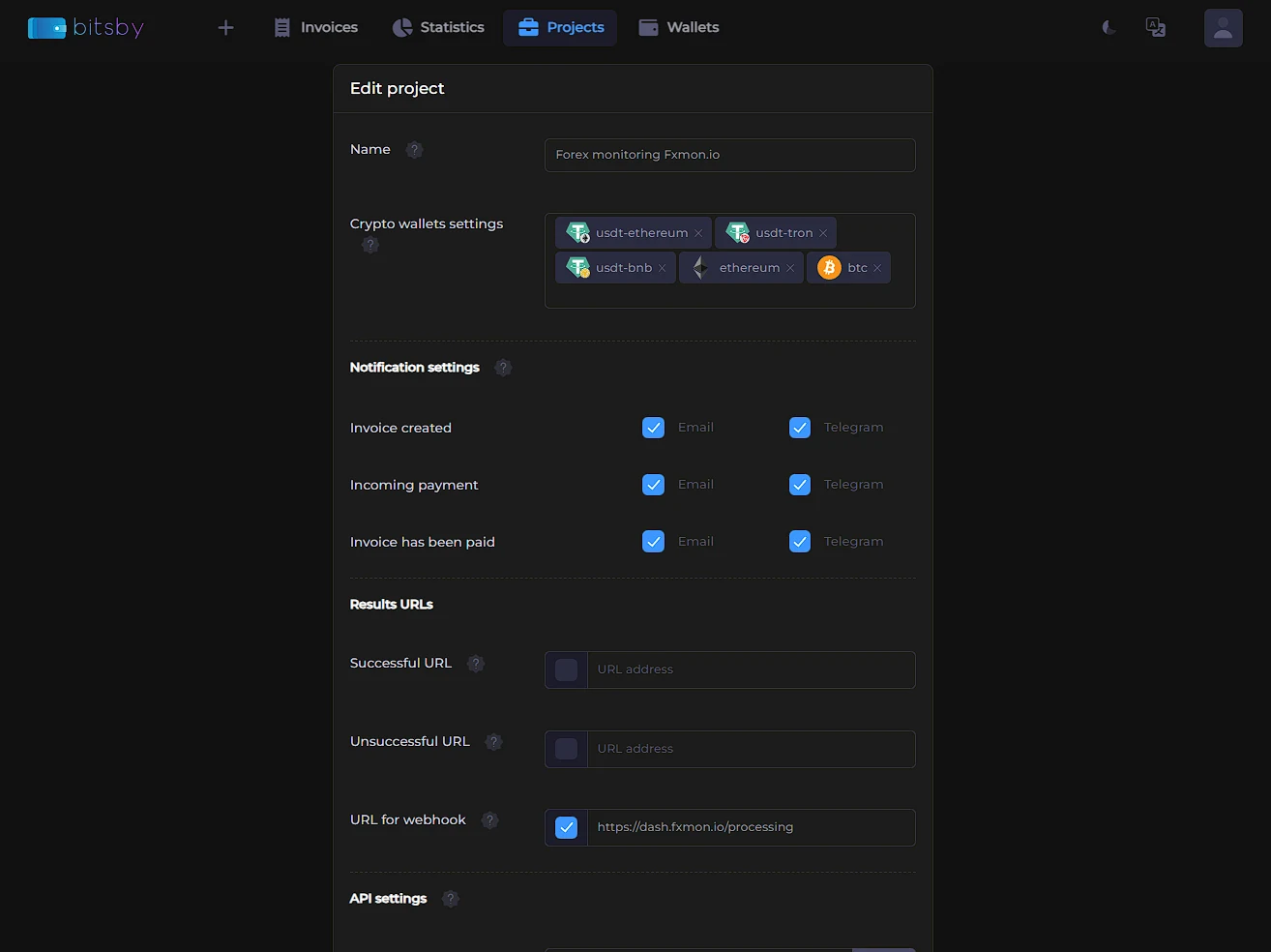
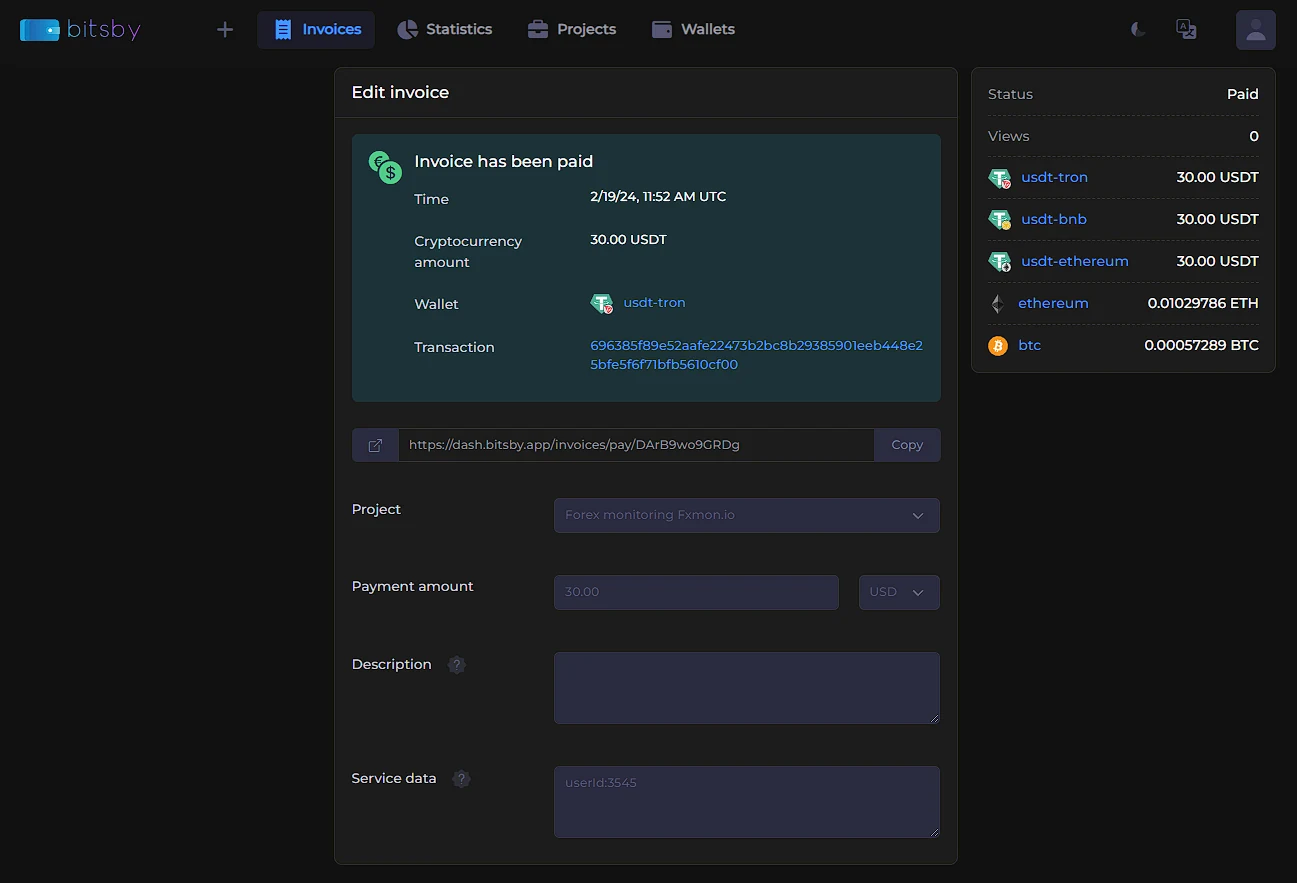
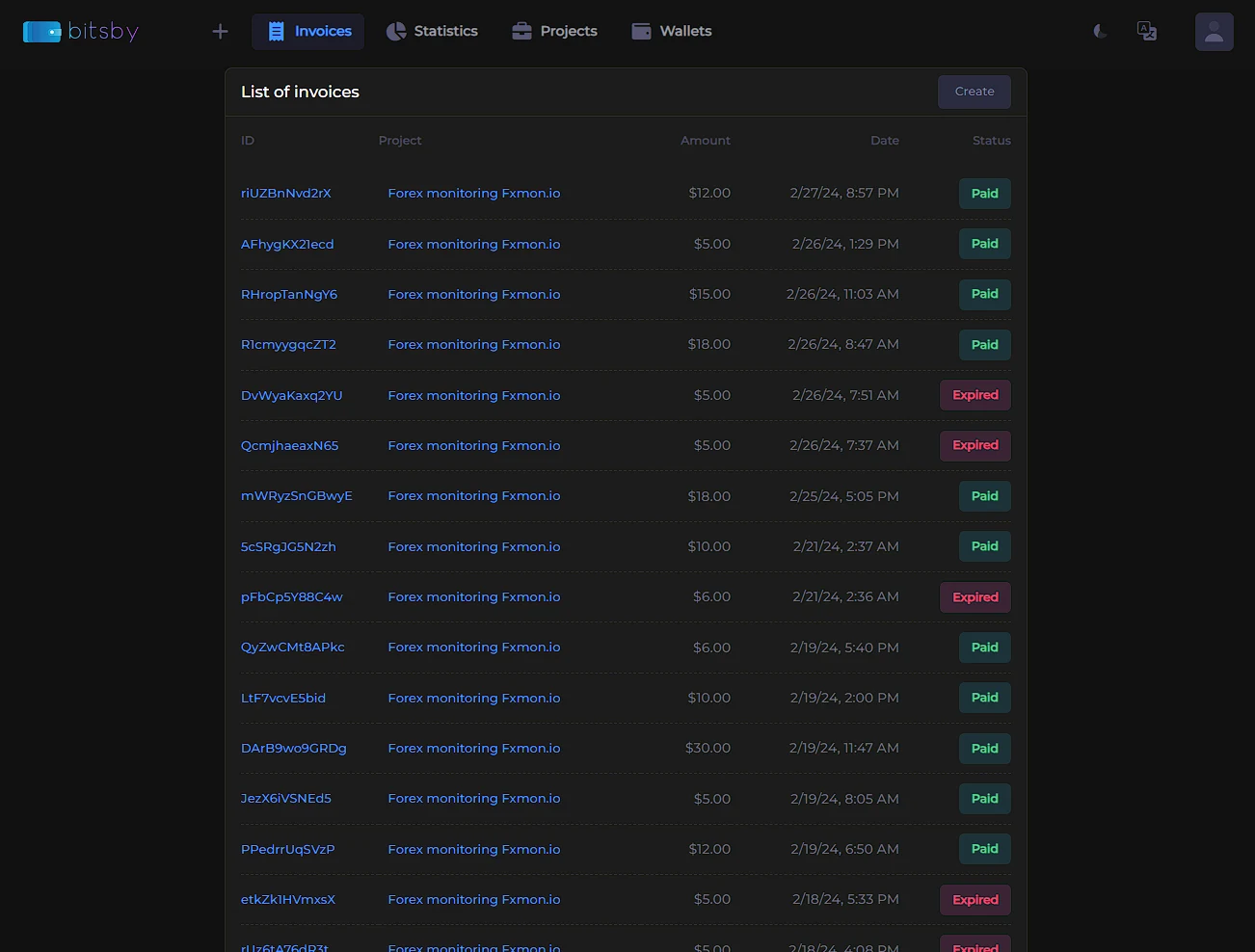
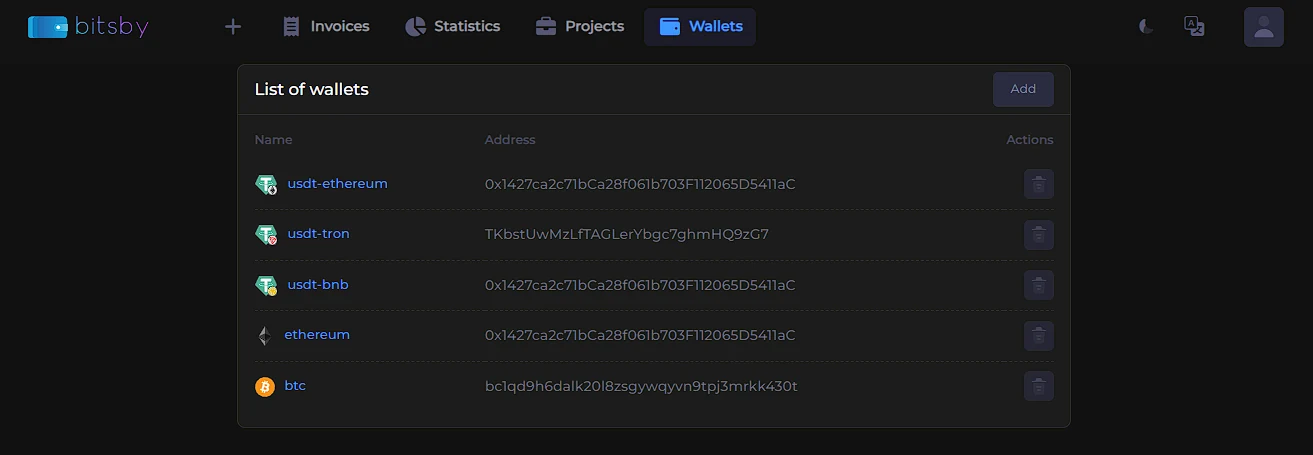
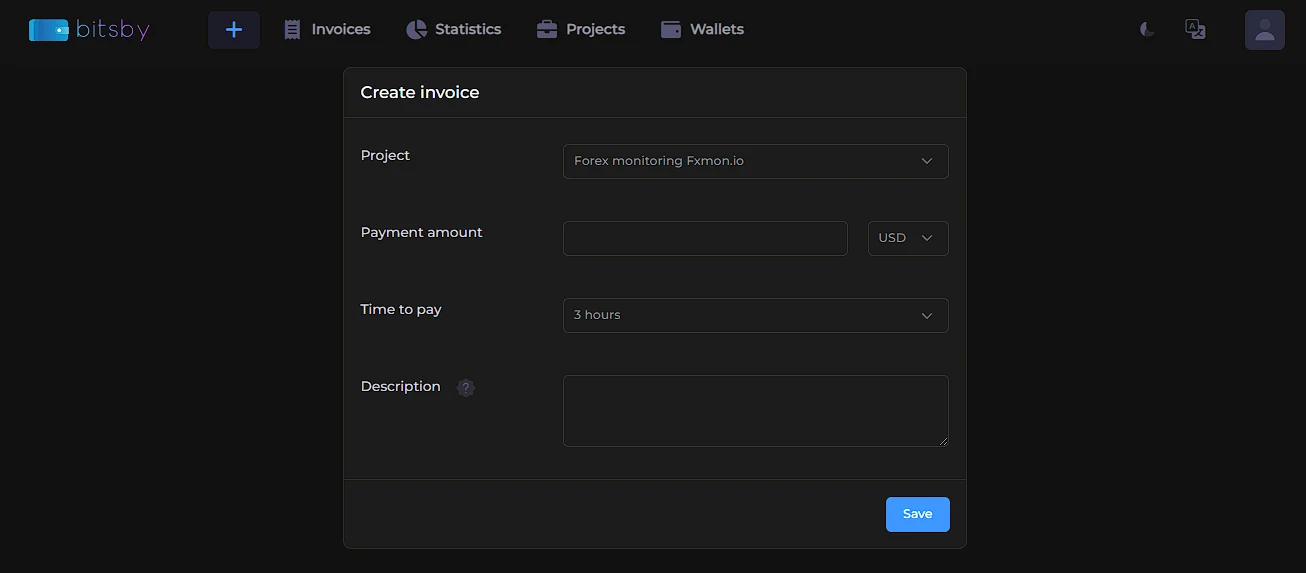
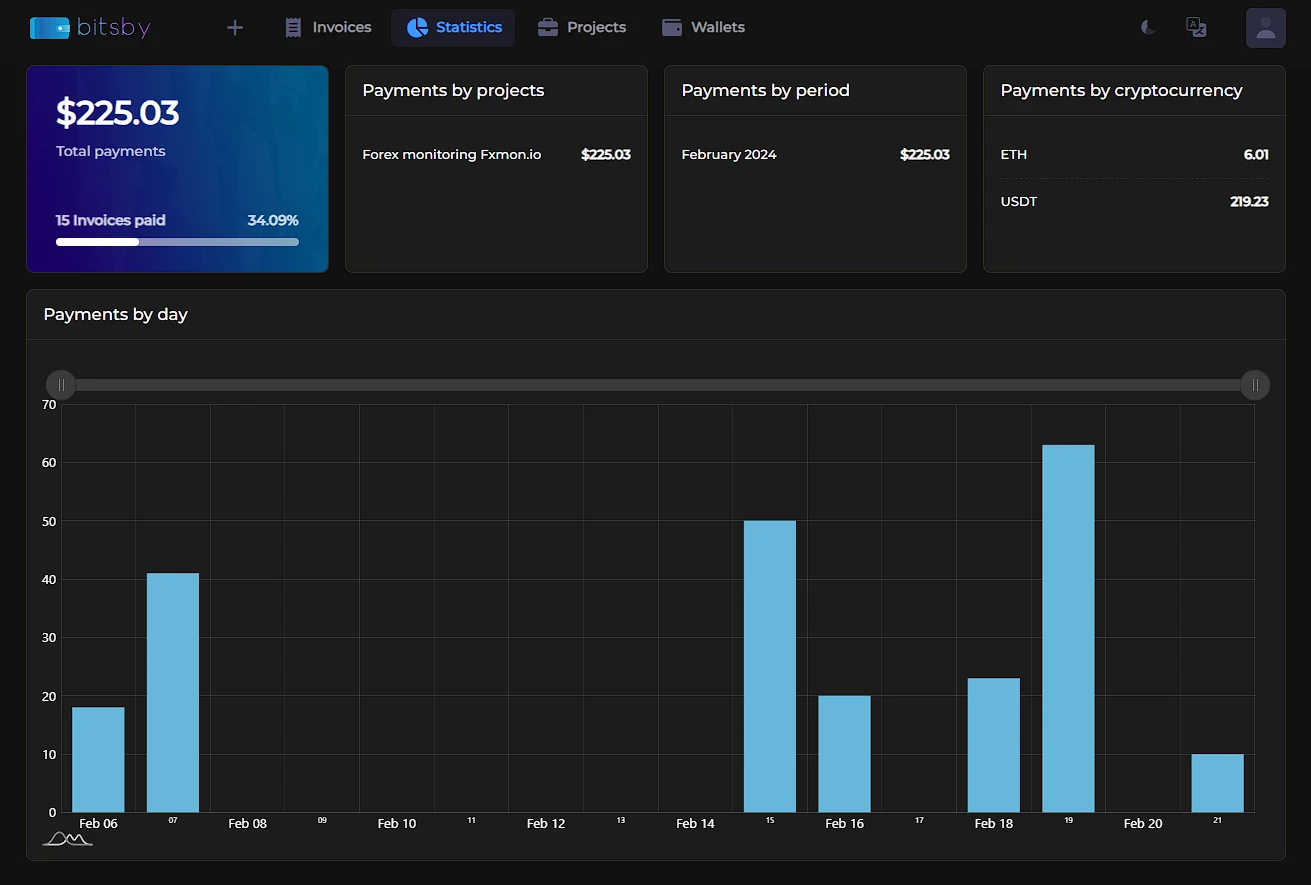
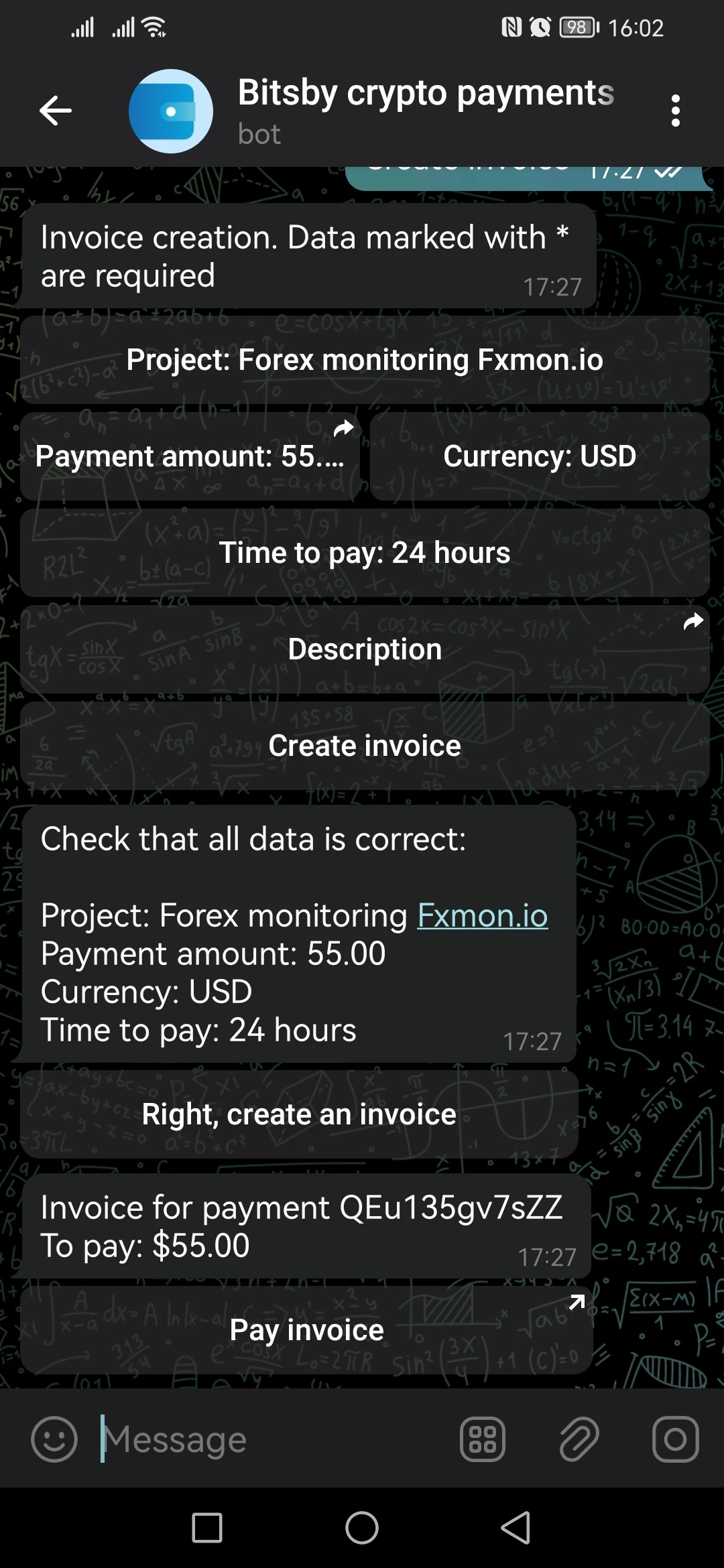
Telegram bot screenshots
Getting started
- Create an account.
- Add your crypto wallets.
- Add a project.
- Create invoices—manually in the dashboard or the Telegram bot, or automatically via an HTML form or the API.
- The customer lands on the payment page: with manual creation you send them the link yourself; with the HTML form and the API your site redirects them automatically.
- For automatic order fulfillment, set the Webhook URL in the project settings—it receives a notification for every paid invoice.
- Track all invoices in a convenient table.
Fees
- The service fee is 0.5–1%. It is charged only on successful payments.
- The system sets the fee rate automatically based on the project's turnover over the last 30 days.
- You can choose who pays the fee—the merchant or the customer.
Invoice creation methods
- Manually in the dashboard or the PWA app on your phone
- Manually in the Telegram bot
- Automatically via an HTML form
- Automatically via the API
Custom domain
You can connect any domain you own and brand the service as yours. In that case, the service replaces all logos and links with your project's. See the dedicated section for details.
Technical support
Telegram: @hbsupp_bot
Email: support@bitsby.app